31 May, 2011

Downloading online flash games and playing it offline in ubuntu 11.04

Flash games are always the right option whenever you feel bored and frustrated sitting infront of pc. Here is a cool trick for downloading all your favorite flash games from any websites that we play usually online. Along with this i am just including the installation of a flash player for playing the .swf files we are going to download ( a browser installed with flash plugin is always enough, though just use it... ).

Usually all the flash games are embedded in the html page so that the browser first caches and loads the application. So the trick to find out the correct url of the .swf file (of the game) varies from website to website.. Dont worry we will go through some eye popping tricks :P

Installing swf player in ubuntu
- - - - - - - - - - - - - - - - - - - - - - - - - - - -
Install swfdec-gnome package with your terminal as follows. U can use synaptic or Ubuntu software centre to install it.  


$ sudo apt-get install swfdec-gnome
 

#   Catching the fish           <------ geeky way
-----------------------------------


Now it is the time to find a cool flash game that you call 'addiction'. For the timesake i am taking the famous game called 'appleshooter'. You can find it on the officegamespot website. Wait till the browser loads the game. Now just take the source code of the page using View => Page Source from the browser (or hit Ctrl + U). In the source page find the pattern ".swf" (Hit Ctrl + F and type .swf).


If you find this pattern as a part of a url then that is the original location of the swf file which we see embedded in the html page. Then copy paste the url ending with .swf on a new tab on the browser to load that game alone. If you dont get a url, we need to use some kind of guess work to find it out.
 

Here i am pinning the screenshot of page source of the appleshooter game on officegamespot website. They dont uses direct url to the .swf file in the page source.


I guessed the url to the .swf file from the above picture from this field <a href="arrow_shooter_03.swf" .....> and tried replacing the tail part of the url,  


http://officegamespot.com/officegames/appleshooter.htm 
with  
http://officegamespot.com/officegames/arrow_shooter_03.swf 
Hi hi, that worked !!! the flash game alone loaded in the browser.

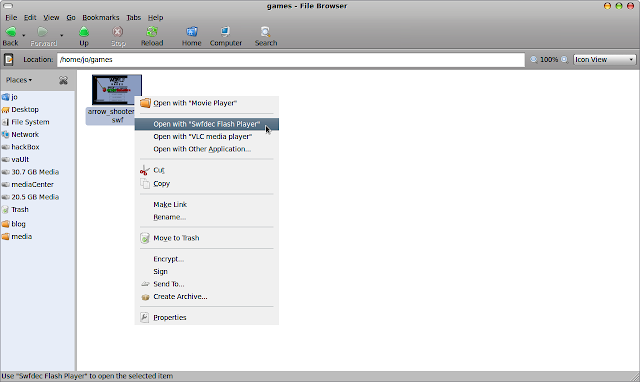
Now save the swf file to your machines hard disk for using it offline. For this just go File > Save Page As from the browser itself. So we have done it almost, whenever you want to play the game just go to that folder and open the file with swfdec flash player.


#   catching the fish          <-------- firefox guy 1
----------------------------------


Here is another trick to findout the url to the .swf file. After the browser loads the game completely, open a new browser tab and type about:cache?device=disk in the address bar and hit the enter key. Now Find the pattern .swf file in this page. Copy the url of the one that is the flash game among the urls matchin the search for .swf pattern. Open another tab and paste the url (to .swf file) to load the swf application alone in the browser. Use File > Save File As to save it to your hard disk. Later you can play the game by opening the downloaded swf file with swfdec player or with any web browsers...


#   catching the fish        
<------- firefox guy 2
----------------------------------

Another methode to get a copy of the .swf file of the flash game is to search on the browser cache for the file. You shold have to load the game on the browser to make this trick work. After loading the game completely in the firefox browser (no need to play till the last level to get the file completely !!), open a new tab and type about:cache in the address bar and hit the enter key. 


Copy paste the value of Cache Directory under Disk Cache Device to the terminal after typing nautilus.

$ nautilus /home/jo/.mozilla/firefox/tu9q54ls.default/Cache

Then the cache directory will open up. Just sort the items by Modificaton date and you can find the .swf file among the recent files. Copy it from the cache to some other directory, other wise the file will be lost when the browser tab is closed or loaded with some other pages. Now open it with the swfdec flash player to play it anytime like a standalone application..

   
#
  catching the fish   
<------- for the lazy guys
---------------------------------
If you are too lazy to spend time on above tricks, then there is an option... Use the google's search engine to find the swf file for you, so that you can just download and play it. Just type in the search box like this pattern without quotes 'appleshooter filetype:swf'.


Copy the direct url to the swf file from any of the search result. Load it in a new tab. Save it using the browser itself. You can also use a terminal command called wget to download the files.

$ cd your/games/directory
$ wget http://vc02.free.fr/media/kangg/kang.swf


Hope you got the game, now play it ...


and Hope you like the post !  Comment on !! share your ideas ....!!!
Read rest of entry

16 May, 2011

Download your gmail inbox to harddisk for offline usage in Ubuntu

I don't know when i have started using gmail. But now, i am wondering why it doesn't makes me bored eventhough i am watching the same appearence and 'looks of gmail' for more than five years. Gmail is something more than the 'appearences' since it provides a secure and fully fledged mechanism to communicate your personal and business affairs. That may be the reason why i haven't googled for something like 'best online email service' for those past years where i experienced the power of Gmail. 

Here i am introducing an application named 'Gmail Backup' that helps you to download and back up all your mails from the Gmail inbox to your computer's hard disk. The collection of mails that you backed up can be viewed and read offline with the help of some text editors, browsers or email applications such as thunderbird without going online...

 
Setup and Installation

Since the Gmail Backup is a python based application you may need some additional python libraries for running the gui. So first  install the latest version of wxPython on your ubuntu box with the help of Synaptic package manager or apt. The installation  with apt pacakge manager using terminal is given below.

#  First import the key into your apt's list of trusted keys (we both hate warnings !! and this is how we remove the warnings about the digital signature)  

$ curl http://apt.wxwidgets.org/key.asc | sudo apt-key add - 


# Add the following lines to your /etc/apt/sources.list file. Change 'natty' to the suitable one if you are using an ubuntu distribution other than Natty narwhal. 

  #wxWidgets/wxPython repository at apt.wxwidgets.org
  deb http://apt.wxwidgets.org/ natty-wx main
  deb-src http://apt.wxwidgets.org/ natty-wx main

  
#  Run the this command to update your local copy of the packages meta-data. 

$ sudo apt-get update
 

# Now install the wxPython packages using the following commands.

  $ sudo apt-get install python-wxgtk2.8 python-wxtools wx2.8-i18n libwxgtk2.8-dev libgtk2.0-dev

The packages libwxgtk2.8-dev and libgtk2.0-dev may need to be installed if a 3rd party application requires wxWidgets when building from source.
 
# Inorder to access the gmail with such an application you need to enable the IMAP option on the gmail settings. Go to your gmail inbox with your browser. Navigate to the Forwarding and POP/IMAP section on the gmail settings page to enable the IMAP as shown in the figure.


Now download the gmail Backup application from the link here. Extract the zipped file. Using your terminal navigate to the location of the zipped file.
 
#  Use the ls command to list all the files 

$ ls -l *.sh 

Run the file named gmail-backup-gui.sh to start the gui interface of the Gmail Backup application shown below.

$ ./gmail-backup-gui.sh


# Enter the required information and press the backup button to start downloading the mails. You can view the mails with the help of a browser/text editor/email application[kmail,mozilla thunderbird]. All the mails are stored in the specified folder seperately as eml files.
Read rest of entry

14 May, 2011

Does your Gmail account hacked yesterday ??? who knows


You knows !!! Gmail is considered as one among the best email services today, so people are using it for both business and personnel usage. Then comes the issue of security that protects the mails in your inbox. Make sure that your gmail account is safe and open to you only. Google offers activity information mechanism for finding weather your gmail account is hacked or not. Its simple.., you don't need to be a geek. This post will help you to identify weather someone else is accessing your inbox.


Navigate to the bottom side of the gmail inbox. I just pinned the snapshot of mine here. Check for the line starting with the sentence 'Last account activity : x hours ago at IP x.x.x.x'. There you can find a link labeled 'Details'. Click their to see the log information on your gmail inbox and make sure that you are the only one used that account.


Make sure that the IP addresses listed are the same ones that you used. Check the country, date, time and access type also, and identify weather it matches with your usage. Once i have seen a log from a different ip address on my gmail's log. It appeared to be one from Aisanet's network. (That was a my first experience of being hacked). Later i found it was not an accidental one. This unwanted access was from an  internet cafe once i used 2-3 days before the hazard, and what really happened was i really forgot to logout from my gmail account when i quit the cafe. If you feels the same, then understand this is the right time to change your google account's password. Do it  now itself, else you may be the next victim. Changing the passwords frequently is always refered as the best methode to escape from hacks and unwanted access to your personals kept on internet...

Finding ip adress of your machine

If you dont want to go technical just visit the website tracemyip to know your ip address and related details.  


If you are a unix guy, use the ifconfig command on the terminal to know your ip. The field shown as 'inet addr' corresponding to your mode of connection (eth, wlan, ppp) is the ip.


and, If you are windows guy, use the dos command ipconfig in the command prompt window to view your ip. 


Note :
  • Ip address may not be the same for every time you connects, if you are not using a static connection.. 
Read rest of entry

11 May, 2011

6 best practises for a good kowledge researcher on internet

The century where we defined the meaning of 'www' and 'internet' were over. Now these technologies turned to be the best flavour tied up with our life. A child even before he stands up for the first time in his life comes in touch with the latest flavour of technology by watching tv and playing with the mobile phone. So the internet is being a big phenomenon.

Internet offers the best services that connect and educates people across the world. Majority of the internet users utilizes internet as a tool for social networking and chatting only. While internet remains the best knowledge pool, we must follow some good practises to utilize and extract the best from it. Worldwide acceptance of free software and the sharing concepts might have played the key role in fuelling the era of blogs and forums. 

I have always amazed at seeing the number of peple writing and contributing on free software platforms like ubuntu. Everyday how many tweets fly over the internet carrying links?? it might be millions..We have to break the rule that 'internet is nothing but a Goooooooogle search'. As the digital media is rapid and feature rich than the traditional and conventional printed media, we should follow a proper guideline for using it in better manner. My intention is nothing but introducing before you the best practises for online reading and keeping always in touch with the latest technology through this blog post.


1. Dont be the usual guy always :)

Find a little time for spending with the latest stuff in your favourite blogs and webpages other than facebook and myspace. Let's close the tabs of your favourite social networking sites while you read. Dont mix up the everything togeteher, instead find time for everything. You can make a better environment for learning, only if you have the gutz to do that...


2. Subscribe the best (its free of cost) 

Whenever you move over an interesting and 'followable' web page, don't forget to use the subscribe button to subscribe to the feeds from that blog. Feeds are the topics that are written in that blog or web page that will be available on your feed reader (such as google reader) and can be organized as you wish. If you are using an online feed reader service, the advantge is that you don't have visit your favourite blogs individually everytime, every stuff will be available on the feed reader's inbox. That makes all your faourite contents from many web pages under a single roof. Its better to use an online feed reader rather than bookmarking the stuffs with your browser. Bookmarks will be lost on a system crash unless otherwise it is not backed up properly, and it is better for websites rather than blogs.

I have been sticking on to the Google reader for a while since it provides better services to organize and manage my feeds. It have features like slideshow, collections and more to make reading attractive and easy.   


3. Inbox is not your waste box !


Many of the blogs and websites will allow you to subscribe contents through email also, along with the feed subscription. Think before you subscribe via email weather the contents are so important to sit on your inbox. Otherwise your inbox will flood with unimportant mails of blog subscriptions and that may be the reason for losing your job because of unnoticing the appointment order. It took almost one and half weeks for me to remove the unimportant subscriptions from my email inbox. I was forced to do it when my inbox crossed 4000 mails and lion's share of the subscriptions are 3-4 years old and are unread...


4. Comment on !! are you dead???


When you move over a blog post, just take a pause and comment if you have something to add up with the content described in the post. Most of the blogs allow the commenting feature to make discussions live. Remember your comments are always valuable to and useful for the next guy visiting the same post. I usually check for the comments area of the blogposts before reading the content of the post. My intention is nothing but to watch the feedback given by other readers. Soemtimes the trick given on that post might not work and may be the same is commented by someone. So a hawk eye view on comments section will let you decide weather to spend time on reading the post.


5. Share the spirit !!


Whenever you finds an interesting content don't forget to share that link to your friends also. Major social networking sites (twitter, facebook) and online bokmarking sites (delicious,digg) provides facilities to share the links. While sharing a link try to encourage your friends to read that post also. I think youtube videos are shared more than any other links in most of the social networking sites...


6. Watch it on your desktop


 You can use applications for reading the feeds in on your desktop. In a better way. Many feed reader application and widget are available. Google gears can be used to read contents offline from your blog. Some of the applications for Ubuntu distributions are Akregator, Yarssr, Liferea, Blam ...


Hope u like the post. Bye till the next one !!

Read rest of entry

09 May, 2011

Install tweetdeck in Ubuntu 11.04

TweetDeck is an adobe air application that helps us to perform all the online social networking activities using a single platform. It comes as a personal real time browser for connecting you with your contacts across Twitter, Facebook, MySpace, LinkedIn, Foursquare, Google Buzz and more... 


Installation

We need to install Adobe air installer prior to the installation of the tweetdeck. This is because the tweetdeck is built on adobe air framework. You can download the latest version of the adobe air installer linked here. Select .deb from the dropdown list asking for the version to download. 


Double click on the downloaded file (.deb) to install it using the Ubuntu Software center. 

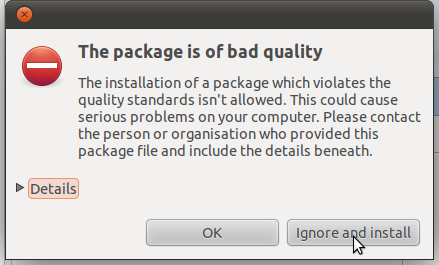
Ignore the bad quality package error if it is shown by the package manager and continue installation...

You can access the Adobe air  installer later from Applications >> accessories for installing other applications based on air framework. 


Now download the tweetdeck.air file from this link. To install it first take the adobe air installer and browse for the tweetdeck.air file.


Then the tweetdeck installer will pop up and begin as shown in the following figures..


Thats all the information needed for installing tweetdeck in ubuntu 11.04. Tweetdeck will ask for authorizing your facebook, twitter etc... accounts in the first login itself... From my point of view tweetdeck is powerful and eyecandy since it provides better interface than any other desktop social networking applications does and it also integrates many social networking communities within a single interface. Lot of customizations are also possible...


Read rest of entry

22 April, 2011

How to change dns address in Windows

 The domain name servers plays a big role in the case of world wide web. It converts the human understandable URLs or host names such as google.com or yahoo.com into machine understandable IP addresses. It is very important to select the best DNS server from a list of available ones since the right selection will reflect in the browsing speeds. Actually when an internet user types some url and hit the enter key, the  role of dns server (usually provided by the correspponding internet service provider for example bsnl or vodafone ) comes into effect. 

The dns server converts the hostname to the corresponding IP address and returns the IP back to the browser.Usually the dns server uses tables to store the hostname and ip, also a domain naming system is also implemented as a distributed system. 

Leave the theories ... lets findout the best dns server that suits you and change the your default dns value to the best one that is more fast and reliable using the following steps...

Before that, the public and free dns address available are 

google public dns
8.8.8.8
8.8.4.4
opendns
208.67.220.220
208.67.222.222

dns advantage

156.154.70.1
156.154.71.1

others
209.244.0.3
209.244.0.4


1. Use the ping command to find the dns server with less average RTT (round trip time).

Take the command prompt and use the average value of round trip time in the ping command to spot the best dns address. Check the figure.

  > ping <dns address here>


2. Replace the default dns address with the new one


Take 'Network and Sharing Center' from the control panel. Select the 'Manage Network Connections' from the left side panel. Select the connection and right click to select the 'Properties' from the menu.


Select the TCP/IPv4 under the Networking tab and click the 'properties' button to change its properties. 


Inside the TCP/IPv4 properties click on the 'Use following DNS server' and add the DNS server address there as shown in the image below.

If the connection is already active you may have to restart the connection to make the changes take into effect. 


That's all about the configuration. From my personal experience google's public dns addresses are fast and reliable than the others. Almost a lion's share of time i spend on internet is usually with google related sites such as google search engine, analytics, blogger... The method for changing the dns address in Ubuntu linux is explained in the post linked here
Read rest of entry

18 April, 2011

Social networking on mobile phone without internet connection

Hai friends, in this post we will discuss two ways for accessing the most common social networking websites anywhere within india through mobile phones without an internet connection. Usually these applications updates your status or brings your recent wall posts on social networking websites by sending and receiving Short Messaging Service (SMS dude !!!). These applications discussed below offers access to twitter, facebook, google mobile services etc...


smstweet   ::  for tweeting on the go via sms

shorthand browser  ::  its a j2me application that can run on your phones that support java  


# smstweet 

Smstweet is a web based application for posting twitter feeds only. You have to register your mobile phone number with the website. After successful registration it will connect your twitter account with the smstweet server. That's you need to do on the website. You can start posting your tweets and mentions by sending the message as formatted below to the number : 
09243000111 (Bangalore)

TWT <space > content of the tweet


# shorthand browser

Shorthand browser is an all-in-one mobile application  for accessing many social networking sites and it  is described as  "the internet on your  phone without a data plan".  Shorthand’s apps use SMS text-messages to send and receive information but look so good you’ll think they use data (they don’t!). “SMS Apps” for all your favorite web sites are bundled within one super simple mobile application, Shorthand. Using shorthand you can access the following websites. 

Orkut
Facebook
Google - maps, cricket, horoscope, news ...
Twitter
Wikipedia
Naukri
• SMS GupShup
• And more!
 
You can download the shorthand browser from the following links 


That's all about the social networking mechanism that does not requires a data plan on your mobile phone...
Read rest of entry

29 September, 2010

I'm Feeling Lucky in Google

The I'm Feeling Lucky button seen on google's home page is a feature that leads directly to the top-ranked page corresponding to your search keyword. You can avoid the search results page in cases you know the top-rated pages corresponding to your search. For example, you may need to go twitter's home, you only need to do is: type twitter in google's search box and then press the I' feeling lucky button. Then google will automatically redirect to www.twitter.com instead of showing the search results.

Adventures with I'm Feeling Lucky button

Go to www.google.com and try the following keywords in your search box and click the I'm Feeling Lucky button to see the craziest and awesome things in the google... You will be stunned.....

  • Google Hacker 

  • Google Pacman

  • Google Gravity

  • Google Sphere

  • Epic Google

  • Rainbow Google

  • Google Mirror

  • Google Loco

  • Google Gothic

  • Google Easter Eggs

Among the above searches gravity, pacman and hacker are the most awesome 


Read rest of entry

26 September, 2010

Orkut affected by Bom Sabado: next threat to social networkng

After the problems that hit the twitter last week, google's social networking website Orkut being hit hard by the “Bom Sabado” javascript worm, which infected users with scraps containing “Bom Sabado”. The word "Bom Sabado" means "Good Saturday" in Portuguese, which is also the official language of Brazil, one of the last remaining Orkut bastions in the world. The worm seems to be posting scraps with the text "Bom Sabado" and also adding affected users to new Orkut groups which is having explicit contents. Such XSS attacks have targeted Orkut in the past too. Please urgently perform the following steps to avoid the spread of bom sabado and to avoid becoming the victim of it. Its more than a day the virus attack being happened and the problem is not fixed within this time...

    1. DO NOT visit any profile on Orkut till this script is blocked. Better to avoid using orkut till the google fix the problem

    2. Clear your browser cookies and cache right away and change your password

    3. Use the Google Acconts link here to change the password 

    4. Avoid replying to the Bom Sabado scraps...


Read rest of entry

04 September, 2010

Links: the browser for the terminal


Links is powerful text WWW browser with tables and frames. It runs in linux terminal providing a faster access to internet especially on slow connection. Its completely text based, so that you cant use it  as a complete replacement for usual browsers since terminal can not display images. Also since text based it can be a used for faster acces of internet when you are using mobile internet. 


Installing links in Ubuntu

Take the terminal and type in as follows

 $ sudo apt-get install links 

Or you can download the links package with graphics in compressed format from here. The details about installation are provided in the links site.
 
Browsing in links 

After installation take the terminal and type links

 $ links
 
command line options
-g 
            to run links in graphics mode
-no-g
            to run links in text mode

-anonymous
            Restrict links so that it can run on an anonymous  account.   No local  file  browsing.  No  downloads.  

 
-http-proxy <host:port>
              Host and port number of the HTTP  proxy,  or  blank.


-ftp-proxy <host:port>              
              Host  and  port  number  of  the FTP proxy, or blank. 

-download-dir <path>              
              Default download directory.  (default: actual dir) 


Navigation keys

ESC/F9    menu/escape
d      download link (text mode only)
/       search in the page
?       search back in the page
n       find next match
f        zoom actual frame
^R    reload page
g       go to URL
G       edit the current URL and goto the result
s       bookmark manager
q       quit, close window if more windows are open
=      document informations
\       toggle HTML source/rendered view
 
Setting proxy in links

Select Network Options from the setup menu(Click on F9 to get the menu).
 
Select Proxies to input the proxy address.


Read rest of entry
 

Terminal Diary | techblog Copyright © 2009 Gadget Blog is Designed by jintu jacob Powered by Blogger