31 May, 2011

Downloading online flash games and playing it offline in ubuntu 11.04

Flash games are always the right option whenever you feel bored and frustrated sitting infront of pc. Here is a cool trick for downloading all your favorite flash games from any websites that we play usually online. Along with this i am just including the installation of a flash player for playing the .swf files we are going to download ( a browser installed with flash plugin is always enough, though just use it... ).

Usually all the flash games are embedded in the html page so that the browser first caches and loads the application. So the trick to find out the correct url of the .swf file (of the game) varies from website to website.. Dont worry we will go through some eye popping tricks :P

Installing swf player in ubuntu
- - - - - - - - - - - - - - - - - - - - - - - - - - - -
Install swfdec-gnome package with your terminal as follows. U can use synaptic or Ubuntu software centre to install it.  


$ sudo apt-get install swfdec-gnome
 

#   Catching the fish           <------ geeky way
-----------------------------------


Now it is the time to find a cool flash game that you call 'addiction'. For the timesake i am taking the famous game called 'appleshooter'. You can find it on the officegamespot website. Wait till the browser loads the game. Now just take the source code of the page using View => Page Source from the browser (or hit Ctrl + U). In the source page find the pattern ".swf" (Hit Ctrl + F and type .swf).


If you find this pattern as a part of a url then that is the original location of the swf file which we see embedded in the html page. Then copy paste the url ending with .swf on a new tab on the browser to load that game alone. If you dont get a url, we need to use some kind of guess work to find it out.
 

Here i am pinning the screenshot of page source of the appleshooter game on officegamespot website. They dont uses direct url to the .swf file in the page source.


I guessed the url to the .swf file from the above picture from this field <a href="arrow_shooter_03.swf" .....> and tried replacing the tail part of the url,  


http://officegamespot.com/officegames/appleshooter.htm 
with  
http://officegamespot.com/officegames/arrow_shooter_03.swf 
Hi hi, that worked !!! the flash game alone loaded in the browser.

Now save the swf file to your machines hard disk for using it offline. For this just go File > Save Page As from the browser itself. So we have done it almost, whenever you want to play the game just go to that folder and open the file with swfdec flash player.


#   catching the fish          <-------- firefox guy 1
----------------------------------


Here is another trick to findout the url to the .swf file. After the browser loads the game completely, open a new browser tab and type about:cache?device=disk in the address bar and hit the enter key. Now Find the pattern .swf file in this page. Copy the url of the one that is the flash game among the urls matchin the search for .swf pattern. Open another tab and paste the url (to .swf file) to load the swf application alone in the browser. Use File > Save File As to save it to your hard disk. Later you can play the game by opening the downloaded swf file with swfdec player or with any web browsers...


#   catching the fish        
<------- firefox guy 2
----------------------------------

Another methode to get a copy of the .swf file of the flash game is to search on the browser cache for the file. You shold have to load the game on the browser to make this trick work. After loading the game completely in the firefox browser (no need to play till the last level to get the file completely !!), open a new tab and type about:cache in the address bar and hit the enter key. 


Copy paste the value of Cache Directory under Disk Cache Device to the terminal after typing nautilus.

$ nautilus /home/jo/.mozilla/firefox/tu9q54ls.default/Cache

Then the cache directory will open up. Just sort the items by Modificaton date and you can find the .swf file among the recent files. Copy it from the cache to some other directory, other wise the file will be lost when the browser tab is closed or loaded with some other pages. Now open it with the swfdec flash player to play it anytime like a standalone application..

   
#
  catching the fish   
<------- for the lazy guys
---------------------------------
If you are too lazy to spend time on above tricks, then there is an option... Use the google's search engine to find the swf file for you, so that you can just download and play it. Just type in the search box like this pattern without quotes 'appleshooter filetype:swf'.


Copy the direct url to the swf file from any of the search result. Load it in a new tab. Save it using the browser itself. You can also use a terminal command called wget to download the files.

$ cd your/games/directory
$ wget http://vc02.free.fr/media/kangg/kang.swf


Hope you got the game, now play it ...
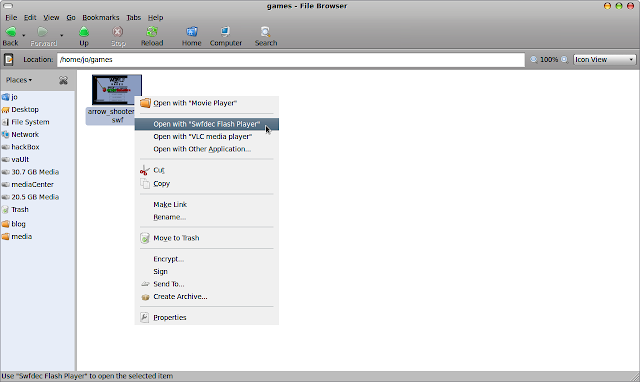


and Hope you like the post !  Comment on !! share your ideas ....!!!
Read rest of entry

14 May, 2011

Does your Gmail account hacked yesterday ??? who knows


You knows !!! Gmail is considered as one among the best email services today, so people are using it for both business and personnel usage. Then comes the issue of security that protects the mails in your inbox. Make sure that your gmail account is safe and open to you only. Google offers activity information mechanism for finding weather your gmail account is hacked or not. Its simple.., you don't need to be a geek. This post will help you to identify weather someone else is accessing your inbox.


Navigate to the bottom side of the gmail inbox. I just pinned the snapshot of mine here. Check for the line starting with the sentence 'Last account activity : x hours ago at IP x.x.x.x'. There you can find a link labeled 'Details'. Click their to see the log information on your gmail inbox and make sure that you are the only one used that account.


Make sure that the IP addresses listed are the same ones that you used. Check the country, date, time and access type also, and identify weather it matches with your usage. Once i have seen a log from a different ip address on my gmail's log. It appeared to be one from Aisanet's network. (That was a my first experience of being hacked). Later i found it was not an accidental one. This unwanted access was from an  internet cafe once i used 2-3 days before the hazard, and what really happened was i really forgot to logout from my gmail account when i quit the cafe. If you feels the same, then understand this is the right time to change your google account's password. Do it  now itself, else you may be the next victim. Changing the passwords frequently is always refered as the best methode to escape from hacks and unwanted access to your personals kept on internet...

Finding ip adress of your machine

If you dont want to go technical just visit the website tracemyip to know your ip address and related details.  


If you are a unix guy, use the ifconfig command on the terminal to know your ip. The field shown as 'inet addr' corresponding to your mode of connection (eth, wlan, ppp) is the ip.


and, If you are windows guy, use the dos command ipconfig in the command prompt window to view your ip. 


Note :
  • Ip address may not be the same for every time you connects, if you are not using a static connection.. 
Read rest of entry

01 May, 2011

Download flash videos without any applications in Windows

Sorry for the title i had given, you need mozilla firefox also for doing this trick. You can use this trick to download flash video from any website that provide free video streaming. Let see an example from youtube itself. Browse for any video and click the play button to start playing the video. Its necessary that you have to play the video for caching it by the browser temporary for playing it soon. This trick will allow you to download only a certain portion of the video also by seeking to a particular position and playing the video from there. 


Now navigate to the folder C:\media\disk\Users\###\AppData\Local\Mozilla\Firefox\Profiles\g3atzu61.default\cache\ using your explorer (you have to replace the ### with your own username). After you reach this folder just arrange the items on the basis of the size. Press the F5 button to refresh the explorer and find the file whose size is increasing frequently. Confirm the file by double clicking/playing the the file using any video player that supports flv format.

You have to copy the cached file to some other folder for storing it permanently, otherwise the file will be lost from the folder when the browser cache is cleared. If you are running the firefox in private browsing mode you will not be able to do this trick since the the location that is used for caching during the private browsing is not the same as above. 


Hope you have enjoyed the trick... :) Click here to read my previous post about downloading flash videos in ubuntu. 

Read rest of entry

22 November, 2010

Basic javascript programs


 1. A javascript to implement variable usage
<html>
<title>Variable Using Script</title>
<body>
<script>
      var greetings;
      greetings='Hi, How are you?';
      alert(greetings);
</script>
</body>
</html>

2. A javascript to implement the pop-up boxes 
<html>
<title>Script for prompt</title>
<script>
var username;
var greeting;
username = prompt("What is your name?");
username=username.toUpperCase();
greeting="Hi, "+username;
alert(greeting);
</script>
</body>
</html>
</script>
</html>

3.Implementing the eval() function in javascript

          In javascript every input is read as string. We need to convert it to numbers for processing if the input is a number 
<html>
<title>Sum of Two Numbers</title>
<script>
var num1,num2;
var sum;
var msg;
num1=prompt("Enter the first number: ");
num1=eval(num1);
num2=prompt("Enter the second number: ");
num2=eval(num2);
sum=num1+num2;
msg="Sum= "+sum;
alert(msg);
</script></html>

4.  Using switch case in javascript.
<html>
<title>Switch Case</title>
<body>
<script>
       var num,day;
       num=prompt("Enter an integer: ");
       switch(num%7)
       {
              case 1: day="Sunday";break;
              case 2: day="Monday";break;
              case 3: day="Tuesday";break;
              case 4: day="Wednessday";break;
              case 5: day="Thursday";break;
              case 6: day="Friday";break;
              case 0: day="Saturday";break;
              default: day="Invalid Day Number!!\n";
       }
       alert("Day: "+day);
</script>
</body>
</html>

5. Implementing for loop in javascript
<html>
<title>For Loop</title>
<body>
<script>
       var i;
       for(i=0;i<10;i++)
       {
              alert("This is the message no: "+i);
       }
</script>
</body>
</html>

6. Generating local information from the browser using javascript
<html>
<title>Information</title>
<body>
<script>
       document.bgColor="blue";
       alert("Background: "+document.bgColor);
       alert("Domain: "+document.domain);
       alert("URL: "+document.location);
       alert("Last Modified: "+document.lastModified);
       alert("Last Page: "+document.referrer);
       alert("Title: "+document.title);
</script>
</body>
</html>

7.Writing dynamic javascript contents on to html page to display in browser 
<html>
<title>Dynamic Write</title>
<body>
<script>
       var name;
       name=prompt("Enter your name: ");
</script>
        Hi how are you?
<script>
       document.write(name);
</script>
</body>
</html>

8. Implementing onclick events and functions within a form using javascript
<html>
<title>Script for Form Variable Changing</title>
<body>
<script>
       function changebuttonValue()
       {
               document.myForm.button.value="changed";
       }
       function changeText()
       {
               document.myForm.text1.value="Enter you name";
       }
</script>
<form name=myForm>
<input type=text name=text1 onMouseOver='changeText();'>
<br>
<input type=button name='button' value=Enter onClick='changebuttonValue();'>
</form>
</body>
</html>

9. opening a new browser window using javascript
<html>
<title>Open a New Window</title>
<body>
<input type=button value="Show New Window" onClick="newWindow();">
<input type=button value="Close Window" onClick="closeWindow();">
<script>
       var new1;
       function newWindow()
       {
              //document.write("Hi");
              new1=window.open("frame1.html","Name","height=450,width=450");
              new1.focus();
       }
       function closeWindow()
       {
              new1.close();
       }
</script>
</body>
</html><hr align="left" size="1" width="100%">


Read rest of entry

a Javascript a day | my javascript tutorial . . .


                 Here i share my basic experimentsi had done with javascript. Its not enough for making a geekness with that, but only for making the first lessons of javascript ...

What is javascript ?

JavaScript is a scripting language that will allow you to add real programming to your webpages. You can create small application type processes with JavaScript, like a calculator or a primitive game of some sort. Important uses of javascript are
  • Browser Detection
    • Detecting the browser used by a visitor at your page. Depending on the browser, another page specifically designed for that browser can then be loaded. 
  • Cookies
    • Storing information on the visitor's computer, then retrieving this information automatically next time the user visits your page. This technique is called "cookies".
  • Control Browsers
    • Opening pages in customized windows, where you specify if the browser's buttons, menu line, status line or whatever should be present.
  • Validate Forms
    • Validating inputs to fields before submitting a form. An example would be validating the entered email address to see if it has an @ in it, since if not, it's not a valid address. 
 
where is the playground ?

The browser will use the 
<script type="text/javascript"> and </script> to tell where javascript starts and ends respectively.

The <script> …… </script>  Tag can be included in

  • <head> section
  • <body> section
  •  Both <head> section and <body> section
  •  In an External file with .js extension    
    • Eg : <script type="text/javascript" src="xxx.js"></script> 
To declare a variable in JavaScript, use the var command.    Eg : var state, city, zip, country; 

Basics

  • Write directly into the document.
     >> document.write("Welcome to my world!!!");

  • Write using POPUP Boxes
     Alert Box
     >> alert("Welcome to my world!!!");

     Confirm Box

     >>if (confirm("Do you agree")) 

               {alert("You agree")}
           else{alert ("You do not agree")};

    Prompt Box
    >> username=prompt("Please enter your 

                    name","Enter your name here");  

Check out this link to make out the rest.
Read rest of entry

21 November, 2010

My first java applet program

              This is a blog about embedding a simple java applet inside a web page. A java applet is actually a runnable java program that can be embedded in a website for showing some graphics or making the web page interactive. It all runs by itself and any modern web browser with java plugin can run applets. So we create a sample java program first and then compile it to make the .class file ie the runnable. Then this runnable is embedded in the web page in a mechanism similar to embedding pictures inside the html file using html tags.

So before you starting the applet programming you need a java programming environment within your system including javac compiler and Java Runtime Environment.

I started doing the applet programming as it is a topic in my Web Commerce paper. Still i didn't got enough time to invest for it, but here is the basic things that I came across while discovering the kick of applets with my ubuntu box... 
1. First open up your text editor and paint all the code inside it, save it with .java extension. Use the code snippet  below or download from here,
Read rest of entry

18 October, 2010

Download flash videos in Ubuntu without any application

Here is a simple trick that you can use to download your favourite flash videos from Youtube or metacafe without any application. You can stop your search for an apt application for downloading youtube videos... installing it on linux...Just leave everything...


Just login to the youtube and click on some videos to play it.


While the video is streaming, check the /tmp folder in the Ubuntu's file system. There you can see the same video file being updated with filename like Flash26YGf2.flv


You can copy this video file to some other place to make it viewed later. If you reload the the webpage or open some other video in the same tab/window of the web browser then the previous video file will be overwritten with the new one. So better is to copy the flash video file just after it is completely buffered in the web browser.


This tip has one another advantage too. If you want to see the end part of a flash video file which is about 1 hour length, you dont need to download the complete video from the beginning. You can seek the video into desired portion in the website. Then video file in the tmp directory will be starting from the new positon to which you seeked it.


So this technique is simple and cool where you need only a flash video player embedded in the web browser only to save the video. This methode can be used in situation where you  can play  video but blocked from downloading it since you have no account registered in those websites.
Read rest of entry

07 October, 2010

Complete reference to SSH tunnelling

an introduction . . .

In simple words tunneling is a method of bypassing firewall or proxy restrictions using some tunnelling protocols. It works by creating a "tunnel", or a communications channel that makes the firewall think that it is getting traffic from a web browser. Communications content is delivered through this tunnel to our gateway or your own personal gateway. The gateway extracts your content from the tunnel and sends it to the destination. When your counter party responds everything goes back the same way. Tunnelling can be used when your company, college, university, ISP blocked certain programs, FTP, telnet.

On the other hand, tunneling can also allow inherently insecure protocols to cross your firewall. For this reason, it may be advantageous to use a firewall solution that does content based checking of HTTP connections, so that you can disallow connections that are actually tunneling other protocols. This can be quite difficult to do. SSH tunnelling techniques have a wide range of applications among the other tunnelling protocols.  


SSH tunnelling ...
To set up an SSH tunnel, one configures an SSH client to forward a specified local port to a port on the remote machine. Once the SSH tunnel has been established, the user can connect to the specified local port to access the network service. For setting up the ssh application in your machine please  read my previous post from here

A Secure Shell (SSH) tunnel consists of an encrypted tunnel created through an SSH protocol connection. Users may set up SSH tunnels to transfer unencrypted traffic over a network through an encrypted channel.

Configuring the ssh tunnel

X11 forwarding
Ubuntu comes with X11 forwarding facility for the server. We have to enable for the current session only on the client side using the following command 

$ ssh –X  user@myserver

To enable X11 forwarding permanently, you should edit the file ssh_config as sudo  as follows

    $ sudo gedit /etc/ssh/ssh_config

     # for all users, add the line ForwardX11 yes

     # To enable it permanently for a specific user 
         only, add the line to that user’s ~.ssh/config file.
 
Once that setting has been added, the -X option is no longer required to use X11 Tunneling. Run ssh command to connect to the remote system as you would normally. 

To test that the tunneling is working, run xclock after ssh’ing into the remote machine, and it should appear on your client desktop.Thus SSH Tunneling is an excellent way to securely use remote graphical tools!

Logging in Remotely with ssh


To securely log in to a remote host, you can use either of two different syntaxes to specify the user name:

$ ssh -l  user  myserver
or
$ ssh user@myserver

 
Accessing SSH on a Different Port

For security purposes, a remote host may have its SSH service listening a different port than the default port number 22. If that’s the case, use -p option to ssh to contact that service:

$ ssh -p 12345 user@myserver.com
[Connect to SSH on port 12345]


Applications

One of the important advantage of the SSH is that you can forward any TCP port with SSH. This is a great way to configure secure tunnels quickly and easily. No configuration is required on the server side.

Tunneling for remote X11 Clients  

                   
                Inorder to use applications that are available on a remote machine follow the steps

1.[Start ssh connection to myserver]
$ ssh user@myserver
Then terminal for prompt for the password

2.Run the applications
 
$ echo $DISPLAY    -Show the current X display entry
$ xeyes                  -Show moving desktop eyes
$ gnome-cups-manager     -Configure remote printers
$ gksu services-admin       -Change system services
$ firefox                             -starts the web browser

Tunneling for Remote Printing Administration               
                 Let myserver is a print server with the CUPS printing service’s web-based user interface enabled (running on port 631). That GUI is only accessible from the local machine. We tunnel to that service in myserver from the client pc using ssh with the following options:

$ ssh -L 1234:localhost:631 myserver

This example forwards port 1234 on the client PC to localhost port 631 on the server. We can now browse to http://localhost:1234 on the client PC. This will be redirected to cupsd listening on port 631 on the server.

Tunneling to an Internet Service
 

                 Another example for using SSH tunneling is when your local machine is blocked from connecting to the Internet (using proxies, firewalls ...), you can get to another machine (myserver) that has an Internet connection and utilize its connectivity.

The following example lets you visit the Google.com web site (HTTP, TCP port 80) across an SSH connection to a computer named myserver that has a connection to the Internet:

$ ssh -L 12345:google.com:80 myserver

With this example, any connection to the local port 12345 is directed across an SSH tunnel to myserver, which in turn opens a connection to Google.com port 80. You can now browse to http://localhost:12345 and use myserver as a relay to the Google.com web site. 

Since you’re only using ssh to forward a port and not to obtain a shell on the server, you can add the –N option to prevent the execution of remote commands:

$ ssh -L 12345:google.com:80 –N myserver
 

Tunnelling to use SSH as a SOCKS Proxy 

                 Inorder to utilize the full power of tunnelling the best way is to get your browser traffic out of your local network via an encrypted tunnel is using the SSH built-in SOCKS proxy feature.This will make you anonymous (in ip) in the outside world and let you break through the firewall/proxy restrictions imposed on your network.

$ ssh -D 12345 myserver

The dynamic (-D) option of ssh lets you log in to myserver (as usual). As long as the connection is open, all requests directed to port 12345 are then forwarded to myserver.

Next, set your browser of choice to use localhost port 12345 as a SOCKS v5 proxy. Do not enter anything on the fields for HTTP and other protocols, They all work over SOCKS.


Let me conclude...

The SSH tunnelling can be used as a power tool for comunication in environments where limited connectivity is available due to proxies, firewalls and content filtering mechanisms. It provides a secure encrypted channel channel to hide your data from being monitored by anyone. Also the remote access concept will bring your office into your bedroom so that you can login and work on your office machine with your home pc....
Have a nice time in tunnelling ... 

Read rest of entry

30 September, 2010

How to install traditional language fonts in Ubuntu


The multi-language support by operating systems offer a way to type in and read contents of the even traditional languages. Yet there are still some problems persist when you need to install new fonts in your traditional languages. The main problem causes when you visit a website which is in traditional language. Most probably the browser will display junk characters which are unreadable. Here is a how to about installing traditional languages in your Ubuntu machine.

1. First download the font on to your machine, let it be font.ttf

2. Take the terminal and copy this font.ttf to  the Fonts  directory in Ubuntu as root (usually /usr/share/fonts).

 $ sudo cp ~/Downloads/font.ttf  /usr/share/fonts

Relogin to the system to make the changes come into effect.

If you do not have the root permission, please do the following steps.

Copy the font.ttf font to a directory.

Change to that direcroty and run the following  commands.

Run ttmkfdir > fonts.dir
Run ttmkfdir > fonts.scale
/usr/X11R6/bin/xset fp+ <font directory>
/usr/X11R6/bin/xset fp rehash

Open the browser and change the character encoding to “User Defined”

Installing new fonts in windows


In windows you have to copy the fonts in to the C:/Windows/fonts directory.


Read rest of entry

29 September, 2010

I'm Feeling Lucky in Google

The I'm Feeling Lucky button seen on google's home page is a feature that leads directly to the top-ranked page corresponding to your search keyword. You can avoid the search results page in cases you know the top-rated pages corresponding to your search. For example, you may need to go twitter's home, you only need to do is: type twitter in google's search box and then press the I' feeling lucky button. Then google will automatically redirect to www.twitter.com instead of showing the search results.

Adventures with I'm Feeling Lucky button

Go to www.google.com and try the following keywords in your search box and click the I'm Feeling Lucky button to see the craziest and awesome things in the google... You will be stunned.....

  • Google Hacker 

  • Google Pacman

  • Google Gravity

  • Google Sphere

  • Epic Google

  • Rainbow Google

  • Google Mirror

  • Google Loco

  • Google Gothic

  • Google Easter Eggs

Among the above searches gravity, pacman and hacker are the most awesome 


Read rest of entry

07 September, 2010

Remote login using SSH and copying files from remote machines


copy files remotely over internt

SSH stands for “secure shell” and its a program and protocol also. Through SSH you can  use the applications that are available in a remote computer on internet even if you don't have it in local machine. Only requirement is a working internet connection and an account in the remote machine.  The OpenSSH program suite, developed by the OpenBSD project, offers a free SSH facility with everything necessary to use encrypted connections on different operating systems: 
  :: commandline tools for working on remote machines
  :: to execute programs remotely 
  :: to tunnel Internet services via SSH 
  :: tools for secure file copying

   OpenSSH is a must-have application in any recent Linux distribution. Most systems offer separate packages for the client and the server. Server program is necessary if you want to access your Linux computer via SSH from another machine. 

Applications . . .
- You can login to your office computer remotely from
   home and do all the office work @ home
- Using ssh tunnelling you can communicate over the
   restrictions imposed by proxies and firewalls 
Functions of SSH

ssh       :The command-line client establishes   
             encrypted connections to remote machines 
             and will run commands on these machines if
             needed.

scp      :To copy files (non-interactively) locally to or 
             from remote computers, you can use scp
             (“secure copy”).

sftp      :The ftp client (“secure ftp”) supports
             interactive copying. Like other command line
             ftp clients, the tool offers many other options
             such as copying, changing and listing 
             directories, modifying permissions, deleting
             directories and files, and more...

sshd     :The SSH server is implemented as a daemon
             and listens on port 22 by default. SSH clients 
             establish connections to the sshd.

Installation & Configuration

Take the terminal and type in following commands to install SSH

$ sudo apt-get install openssh-server openssh-client
 
Inorder to test ssh please type in the following command...

$ ssh localhost 
 
To stop ssh server, type in

$ sudo /etc/init.d/ssh stop

To start sshs server, type in

$ sudo /etc/init.d/ssh start

To restart ssh server, type in

 # sudo /etc/init.d/ssh restart


Remote login using SSH

You can remotely login to another machine on the internet by using the following command,

$ ssh  -X  username@100.100.100.3

Replace the username and ip (100.100.100.3) with the one corresponding to you. X option enables the Xserver.

                On executing the above command, the terminal prompt changes to user@remotemachine:~$  you can execute any command as if you are logged in at the remotemachine. Any application from that remote machines can be run by executing the command

examples :
user@remotemachine:~$ firefox
          for starting firefox on a remote machine
user@remotemachine:~$ nautilus
          for starting the file manager on remote  
           machine 
user@remotemachine:~$gnome-session
          to start the gnome session so that you get the   
          desktop with all the features, then you can 
          perform everything in graphical user 
          environment  


Copying files from remote system

                The ssh command alone allows remote login only, but you can copy a file in a remote system to your local machine using the 'scp' command.

1. You are already logged in at user@local$

2. Login to the remote machine  using the ssh  
    command. Then the terminal prompt will change to 
    user@remote

3. Type in the scp command as follows

$ scp  filename user@ip_local:destination

               filename      :: the file to be copied which is 
                                      in remote machine
               ip_local        :: ip adress of your machine
               destination  :: destination folder where the 
                                     copied files are to be saved
       Then the terminal will prompt for your accounts password...


Thats all for now with ssh and scp. You can refer the man page of ssh and scp to see more details in case of using them under a proxy server and also for advanced features...


Read rest of entry
 

Terminal Diary | techblog Copyright © 2009 Gadget Blog is Designed by jintu jacob Powered by Blogger