29 April, 2010

Compiz magic

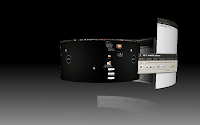
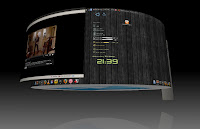
                                  The Compiz Fusion project tries to bring us all the latest 3D technologies, such as Cube reflection, paint fire on your desktop and a lot of new eye candy animations. Compiz Fusion aims to provide an easy and fun-to-use windowed environment, allowing use of the graphics hardware to render each individual window and the entire screen, to provide some impressive effects, speed and usefulness. Compiz Fusion is an open-source software project, meaning anyone can use it freely and contribute.


Compiz Gallore


Installing Compiz

Take the terminal and type in as follows

sudo apt-get -y install compiz compiz-gnome compizconfig-settings-manager compiz-fusion-plugins-extra libcompizconfig-backend-gconf


Preliminaries
Before going on to the compiz settings, first change the Visual Effects to normal or extra. Right click on the desktop and select the change desktop background option. Click on the visual effects tab to change the visual effects.

Click on the Applications --> System tools --> Compiz Fusion Icon


Then the compiz fusion icon will appear on the right of the top panel. Right click on the icon and slelect the Settings Manager.


If you can not change the visual effects click on the Relooad Window manager to change the visual effects from basic to normal or extra.

Read more compiz features on the upcoming posts
Read rest of entry

How to add Network Monitor applet to your taskbar in Ubuntu

                        Netspeed applet is a network monitor applet that describes your network traffic by showing the uplink and downlink rate graphically... Its simply helps you to identify weather there is network traffic or not instead of refereshing your browser frequently..

The figure below shows the Netspeed applet


Adding Netspeed applet to your panel

Right click on the panel on the top of your desktop.  Select the Add to panel option. Look out for the Netwok monitor entry in the list and click on the  add button as shown in the figure below. Now if you are connected to a network or internet the applet will start showing the downlink/uplink rate.


Read rest of entry

How to find the open ports when you get connected

This post is all about the open ports created in your system. This ports are mainly tcp or udp ports. 

Ports below 1024 are reserved for common services, and only root can use them. Standard port numbers can be found in /etc/services. 

Take your terminal and type  in as follows to see them

$sudo gedit /etc/services

The maximum number of ports is 65k, so you have more than enough Internet ports for all your services. Here are some useful utilities. Netstat is a command that will list both the open ports and who is connected to your system. You should run it like this:

$netstat -an | more

This way you can find out who is connected to which service. Another interesting command is the fuser program. This program can tell you which user and  process owns a port. For example, the following command will tell you who owns port 0
$fuser -v -n tcp 0


Read rest of entry

27 April, 2010

Quick tips : Ubuntu / Linux

The simplest way to install the packages
 If you feels the package installation as a head ache in Ubuntu Linux, just try http://www.appnr.com . It has a wide categorized collection of packages with short description, what you need is only a mouse to begin installation.


Separate /home partition when you install Linux
 
Try to make separate partition for the /home when you install linux, and show this partion as the home for any linux that you install later in your system. It has the advantage that if you have more linux with same home then you can share files easily in spite of difference in operating system. Also you can avoid losing your data during an OS crash.


Read rest of entry

Quick tips : Internet

Tip1 : Use firefox / chrome to surf the web

Firefox and chrome are the fastest browsers to surf the web. A little amount of coniguration can further increase the speed of firefox. 


Tip 2 : Search in webpages of other languages

If you can't find out the right page or your search keyword, Use the google's language translator tool to widen your search over diffrent languages. Google will show you the result in english, whatever may be the source language.


Tip 3 : Blog search

If you dont find enough data after googling, try searching over the blogs also. Click on the more link on the top of the google's simple home page to get the blog option. You may feel it a powerful source for data


Tip 4 : Blogger or wordpress ?

Are you planning to start a new blog? Which service will you choose? blogger or wordpress? If you are planning to make some money through some advertisements  then move on with Blogger. Wordpress does not support advertisements, but it will give you a professional blog with a wide variety of elegent themes. Also if you aim at readers from google, it's better to go on with blogger since google will index pages on blogger frequently than wordpress..

www.blogger.com                           www.wordpress.com


Read rest of entry

Quick tip : Laptops

Tip 1: wifi/bluetooth switches in laptops
If you have partiular switch for wifi bluetooth in you laptop then put it always in the ON state physically. They are not so sturdy and are easily prone to complaint. So frequently using these switches will decrease its lifespan.

Better check out your Oparting systen services to enable/disable this services instead of always looking for the switches


Tip 2 :When you buy a laptop

When you are going to buy a laptop give the irst preference to Processor, Motherboard and display instead of looking for the features like good speakers, vibrant color pattern etc...This is because the first three constitutes the important and pricest component in the machine...


Tip 3 : Avoid drinking coffe (conditions apply !!!) 


Try to avoid using moist content near your laptop. It's always a problem to many of the electronic devices...(No restrictions for bear...)


Tip 4 : Using laptop

Avoid using laptop over smooth surfaces like bed cloth etc... This can close the air vents under the laptop preventing the hot air  to flow outside. The system will get heated up, then the fans increase their speed to compensate this speed by increasing the heat further more. Don't make your laptop angry ! ! !


Tip 5 : Use your brain mouse


Use a mouse instead of using a touchpad in your laptop. Coz, mouse is cheaper than a touchpad when you have to replace


Read rest of entry

26 April, 2010

Make your keyboard blinking to represent network traffic using tleds in Ubuntu

tleds is debian based appliation that is used to indicate the netwotk traffic using your keyboard LEDs. As you know the led lights in the keyboard for indicating scroll lock, numlock have no other purpose other than just glowing to indicate this features are active. These remain off during most of the time.

So let's use these LED's to indicate the network traffic of your system. You can make them blinking when you send/recieve packets into network or internet.
This can be done by just downloading a small package called tleds.

Installing tleds


Take the terminal and type in as follows

    sudo apt-get install tleds

configuring

You have to show,  for which connection these LEDs should blink. You will issue the command ifconfig in the terminal to see the name of active connection. The commandline is
   
        sudo tleds wlan0   -- represents the wireless connection

        sudo tleds ppp0     -- represents the point to point connection (eth0,    
                                                                                 mobile broadband )

also you can issue command below for further control

        sudo tleds ppp0 -d 100
100 represents the delay between the blinking in microseconds. This delay represents the blinking speed. You can also issue command like this.  Here the default delay 200ms will be used.

That's all. Take your browser and search for something... See the lights in your keyboard blinking..
   
       
Read rest of entry
 

Terminal Diary | techblog Copyright © 2009 Gadget Blog is Designed by jintu jacob Powered by Blogger